Fullscreen and mini players
Audexis has two ways to bring the player forward. Both control the same playback session, position, shuffle setting, and repeat mode as the main app.
Fullscreen player
Use Playback → Expand Player or the expand button in the bottom playback bar.
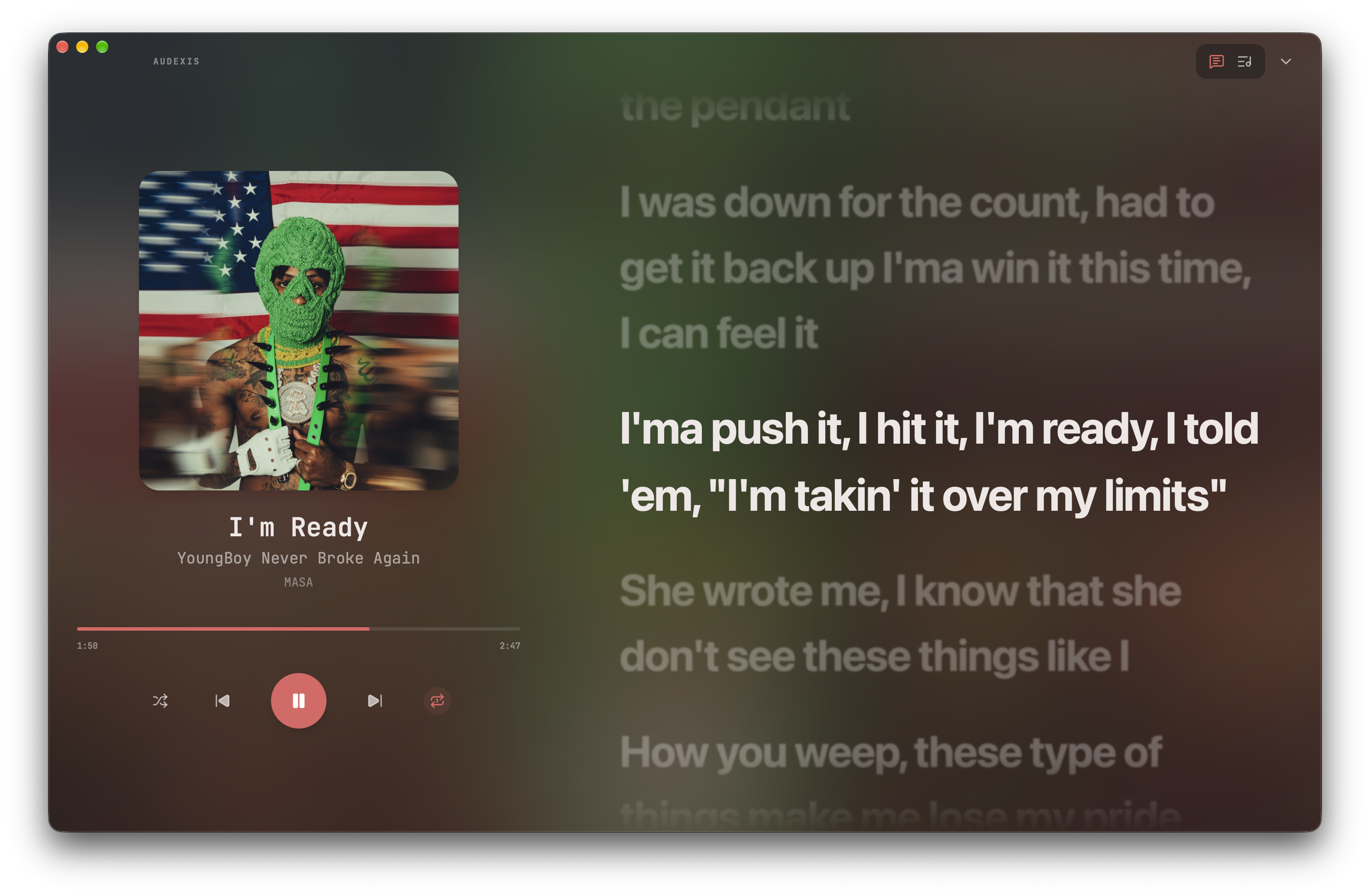
The fullscreen player fills the app’s content with large artwork, track details, seeking, and playback controls. It is an expanded view inside the main app window; opening it is not the same as asking the operating system to enter its native fullscreen mode.
Use its Lyrics and Queue buttons to open the corresponding panel. These are alternate panels, so selecting one changes which information is shown alongside the player.
Use the collapse button to return to the library. Escape closes an open player panel first where applicable, or dismisses the expanded view. Returning to the library does not stop playback.
Mini player
Use Playback → Open Mini Player.
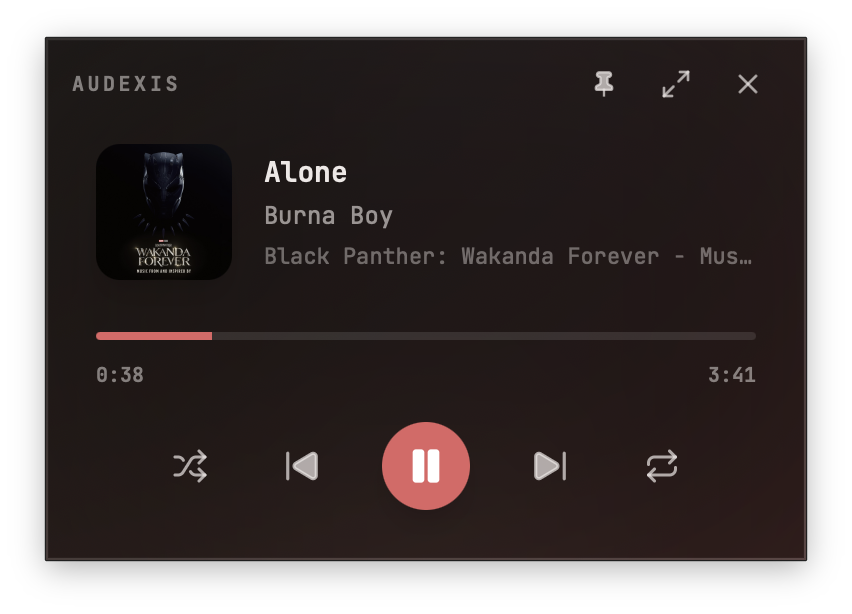
The mini player opens in a separate compact window. It shows the current song, artwork, a seek bar, and playback controls. The current window is fixed-size rather than a resizable version of the entire library.
Drag its title area to move it. Use Always on top to pin the window above other windows, and toggle it again when you no longer want that behavior.
Opening Mini Player again focuses the existing mini window instead of creating another copy. The mini player and main window can both control the same playback.
Return to the main player
The mini player’s expand action brings the main window forward and requests the expanded player view, then closes the mini window after the handoff. Its close button closes the mini window; use Pause when your intention is to stop the current playback.
If artwork or controls look empty
A song without embedded artwork uses a placeholder. If no song is active, choose one from the library. A missing image does not mean the audio itself is unavailable.