Metadata editing
Metadata describes your audio: title, artist, album, track number, genre, composer, and many other fields. Audexis reads these values for browsing and can write changes back into supported files.
Open Track Info
Right-click a song and choose Get Info or Edit Metadata Fields…. Track Info contains Details, Custom Fields, Artwork, Lyrics, and Synchronized Lyrics tabs.
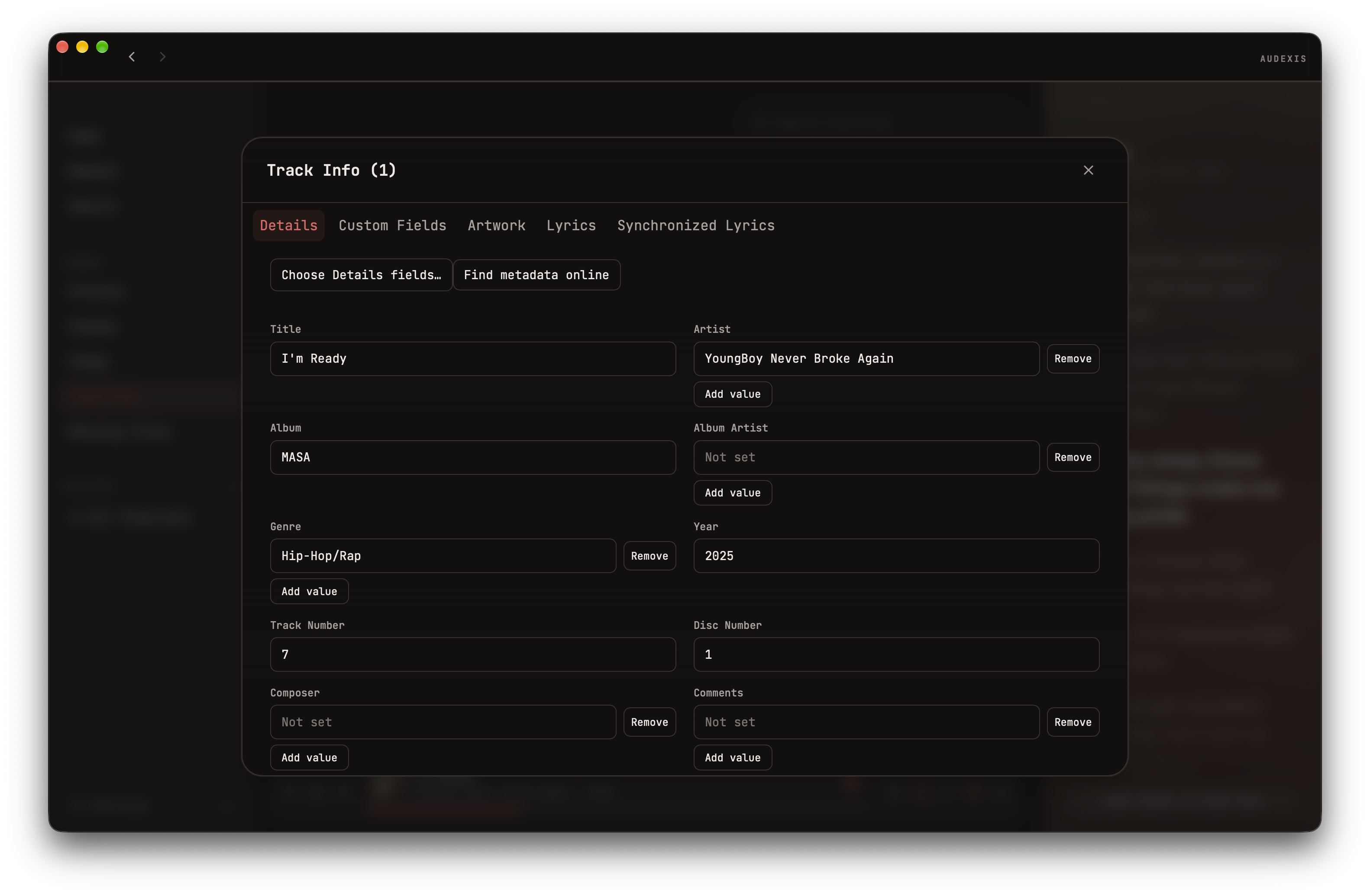
Choose your Details fields
Open Settings → Metadata, or use Choose Details fields… in Details. Search the regular field catalog and select the fields you want to see. Your selections are saved automatically.
Return to Track Info → Details to edit those fields. Removing a field from settings only hides the editor control. It does not remove the embedded value from any file.
For a new field with your own key and display title, use Custom Fields instead.
Edit and save
- Change the values you want to replace.
- For fields that allow multiple values, use Add value to create another input.
- Use the per-value Remove control where available, or clear a field to remove its value.
- Choose Save Changes.
Each input is a separate value. A semicolon in Artist A; Artist B is literal
text, not an instruction to split the field. Equals signs are also allowed in
values, including URL query strings.
An empty field is treated as a deletion when it is saved as a change. Merely displaying an empty field does not create a value. Reset returns the editor to the loaded values; it is not an undo of an earlier successful file save.
Save before leaving the editor. There is no app-wide edit-history undo/redo or file-backup undo feature.
Edit several songs
When Track Info is opened with several selected files, Details shows values shared by those files. A field with differing values appears as Mixed.
Only edited fields are submitted. Leaving a mixed field untouched preserves each song’s value. Editing it replaces that field on the selected songs. Clearing an edited field removes it from those songs.
A save can partially succeed. Read any reported failures before retrying: files that succeeded have already been changed. The backend limits a single metadata update request to 200 files.
Custom Fields uses a song selector for editing individual files within a selection; it is not the same bulk editor as Details.
Find metadata online
Find metadata online searches iTunes using song information. Review the result before applying it, especially for remasters, live versions, or songs with the same title.
Applying a result can save metadata and downloaded cover artwork directly to the selected files. It is not just a search-result preview. Existing non-front-cover artwork is retained by the cover-import flow.
Online lookup requires a connection. Manual editing of local files does not.