
How to Add Unreleased or Custom Music to Apple Music
Sometimes you discover tracks on YouTube or SoundCloud that are not available on streaming platforms. Maybe it is an unreleased demo, a remix, or a live recording you really like.
You might want that song inside Apple Music, organized with the rest of your library, right alongside everything else you listen to.
This guide shows you how to:
- add a custom or unreleased track to Apple Music
- understand why it usually looks bland once it is in your library
- fix the metadata and artwork with Audexis
- re-import and sync the cleaned-up version to your devices
Important reminder: These tracks will only appear for you! No one else on apple music will be able to see these songs
Step 1: Add the track to Apple Music
On macOS
- Open Apple Music
- Go to File → Import or drag the file into apple music or drag the file into apple music
- Select your downloaded file
On Windows
- Open the Apple Music or iTunes app.
- Click the File menu and choose Import or Add File to Library or drag the file into apple music
The track will appear in your library right away. You will be able to play the audio
Sync to your other devices (optional)
If you use Sync Library:
- Open Apple Music settings
- Enable Sync Library
- Wait for Apple to upload your track
After that, your custom song shows up on iPhone, iPad, and other Macs too.
Step 2: Notice how bland it looks
Go ahead and tap on the song now.
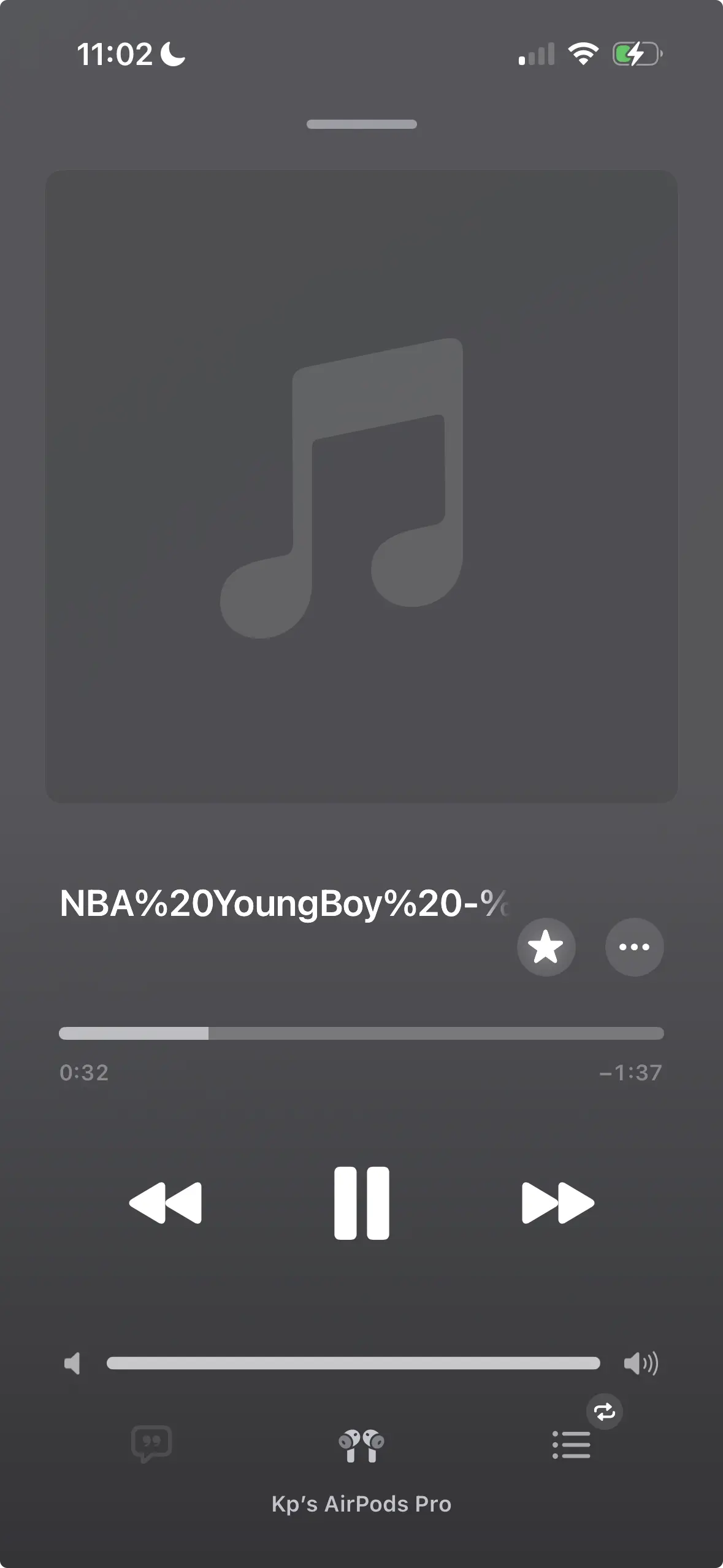
Unreleased tracks, demos, and downloads from YouTube or SoundCloud almost never come with proper tags. So instead of a clean entry in your library, you will probably see some combination of:
- a generic gray music note instead of album artwork
- the file name as the title, often with random numbers or “yt-dlp” style text
- “Unknown Artist” or “Unknown Album”
- no genre, no year, no track number
It plays fine, but it sticks out next to everything else in your library. It does not group properly into an album, it will not show up the way you would expect when browsing by artist, and on devices with smaller screens it just looks unfinished.
The good news is that this is purely a metadata problem, and it is an easy one to fix.
Step 3: Download Audexis to fix the song
Audexis is a metadata editor that lets you rewrite the tags embedded in an audio file and add proper artwork, so the track looks and behaves like any other song in your library.
- Download and open Audexis
- Drag your song file into the app
- Select the track to bring up the editable fields
Step 5: Fill in the metadata
Apple Music relies heavily on metadata for sorting and grouping music. In Audexis, fill in:
- Title
- Artist
- Album
- Album Artist (useful for compilations)
- Genre
- Year
- Track Number
Keep everything consistent. Apple Music reads exactly what you put here, so small differences (like “feat.” vs “ft.”, or extra spaces) can cause songs from the same album to split apart.
Step 6: Add proper album artwork
Unreleased or custom tracks often have no artwork at all, which is the main reason they look bland in your library.
To add artwork in Audexis:
- Select the file
- Click the Edit Artwork button in the sidebar or bottombar
- Click Add Image & select the image you want
Tips:
- Square images look best
- Aim for at least 500x500 when possible
Artwork is embedded directly into the file, so it travels with it wherever the file goes.
Step 7: Replace the song in Apple Music
Once the file is cleaned up in Audexis:
- Remove the old, bland version from Apple Music
- Go to File → Import and select the updated file
- If you enabled Library Sync it should automatically appear on your other devices momentarily.
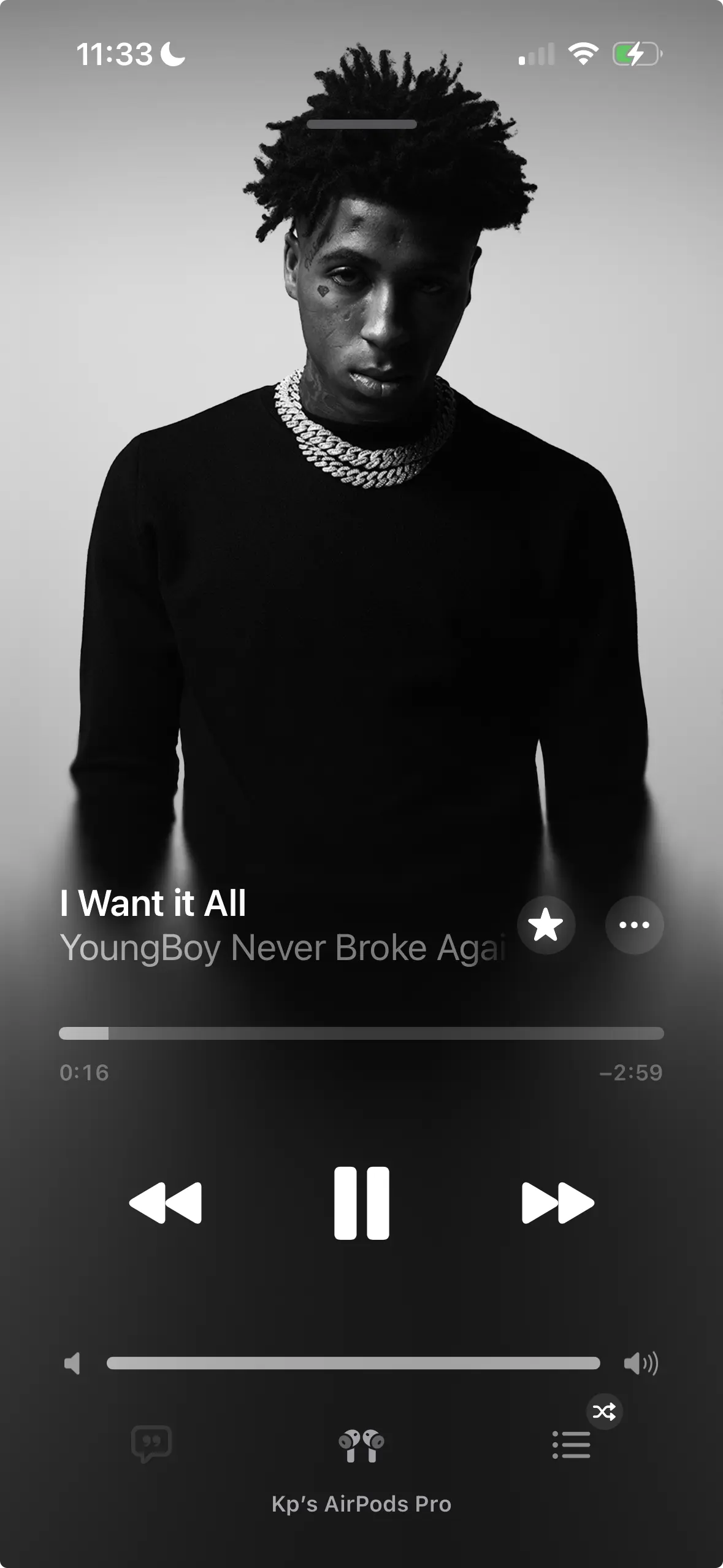
Now the song will look something like this:
Troubleshooting
The wrong artwork appears
Remove the song from Apple Music completely, then reimport after fixing artwork in Audexis.
My file split into a different album
Check:
- Album
- Album Artist
- Year
They must match across all songs in the album.
The track does not sync
Make sure Sync Library is enabled and allow time for upload.
Enjoy your custom music
With Apple Music and Audexis together, you can organize:
- unreleased songs you created
- Unreleased songs from other artists
- demos
- personal recordings
- edits and remixes
Everything stays clean, organized, and consistent.
Try cleaning up your files with Audexis here: https://www.audexis.app